
1. Select the 'Installer_VpbVI_2025-04-18...'

2. Select Continue

3. If the SQL Server is on this server select 'On this Computer', if it is on a different server, select 'On another computer'. If you would like to skip this step and only install the FlightVectorServer, select 'Skip this step. I only want to install the FlightVector Server for now.

4. For the example we chose on this computer, and my Server is already installed, I will chose Yes, use SQLEXPRESS

5. My database is FlightVector_6_9 and will chose 'Continue'

6. On this Screen, you can choose a different file path or drive, I will chose the Default which is below and will select 'Install'

7. This screen will install the Service, Please add in your username/password for the service account and will also have access to the Database

8. Select Exit Installer to Finish

9. Navigate to the FlightVectorServer Folder and 'Right Click'
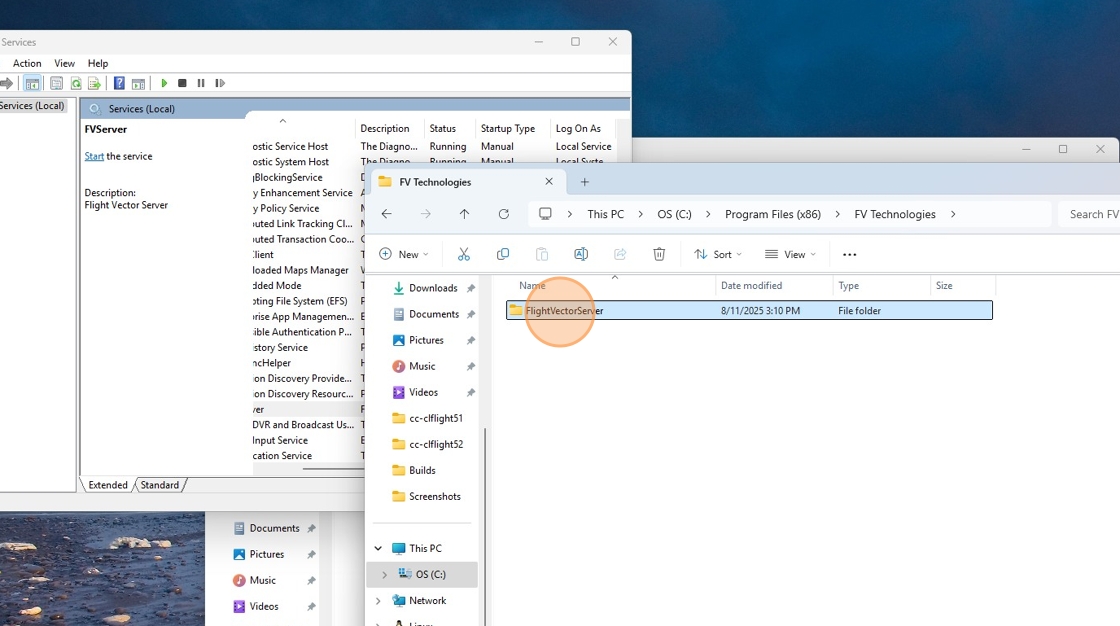
10. Select Show more Options

11. Select Properties

12. Select the Security Tab

13. Select the user is this is associated with your service account that has access to the SQL Server Database

14. Select the 'Edit Button'

15. You will want to give the user 'Read' and 'Write' Permissions

16. Navigate to the Settings.ini file and double check the Server and Database Name are accurate (If this is production you do not need the 'EmailOverride=' this is only for your test environment)

17. This installer uses 6.9.2.0, If this is not the build you are looking to use, please copy and replace the appropriate FVServer.exe and Dbupdates from the Build Downloads Folder of your choice

If you are getting permission errors, like user is not entitled to open DB, please check the user the database is using, by default it uses 'NT AUTHORITY\SYSTEM', then:
Go to SSMS (SQL Server Management Studio), connect to your Server.
Once Opened, click on Security > Login, you will see all Groups
Double Click on the group FVServer is used to open up DB. Another window will pop up where you will see the options. Select Server Roles and enable sysadmin option and hit OK
If you are missing drivers try these: https://map.flightvector.com/a/sqlncli.zip for SQL Server Native Client 11.0
(This needs to be installed on the application server)
If you are unable to install:
Default Driver missing error? Type ODBC into start bar and then click add, scroll to bottom and make sure Driver= from the settings.ini points to one of the drivers there
Dispatch Pro CAD can support up to ODBC Driver 18 for SQL Server. Depending on what your SQL Server version supports, you may use one of the following drivers in Settings.ini:
Driver={SQL Server Native Client 11.0}
Driver={ODBC Driver 17 for SQL Server}
Driver={ODBC Driver 18 for SQL Server}
Sometimes when using 17 or 18 you need to add TrustServerCertificate=True; into the connection string for it to work, and version 18 needs Visual C++ Redistributable 2015 to work.
Comments
0 comments
Please sign in to leave a comment.