
Installing FlightVector Client
This guide offers a comprehensive step-by-step workflow for downloading and installing the FV CAD Client.
1. Navigate to the Build and Downloads folder within Zendesk and select "FV CAD Client Setup"
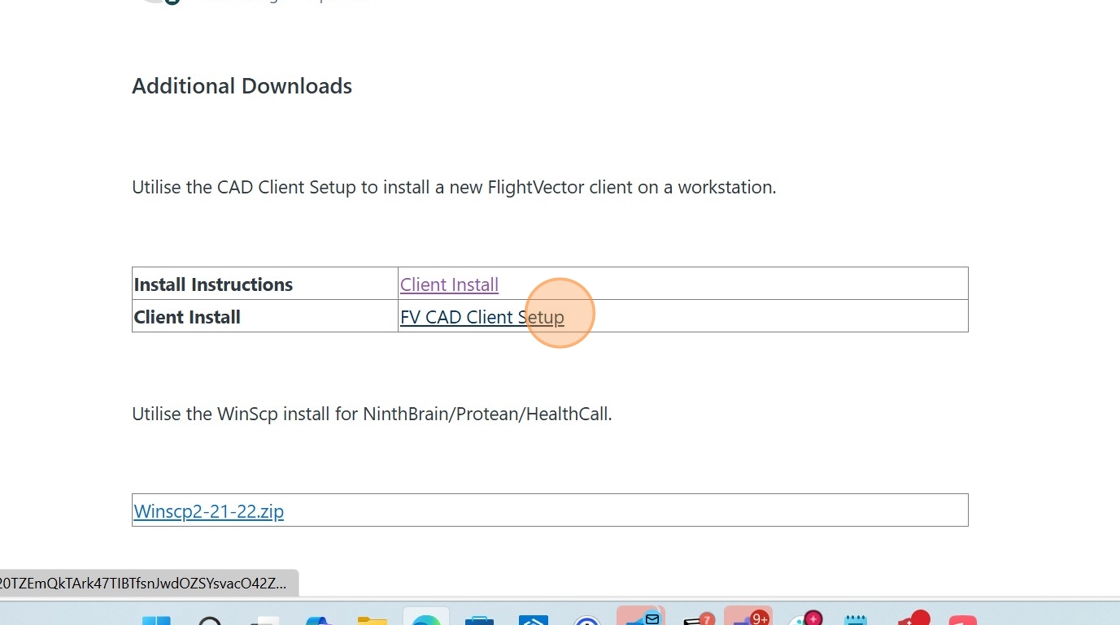
2. Download and unzip the files

3. Double-click "FlightVectorSetup_6_1_0_0"

4. Click "More info"

5. Click "Run anyway"

6. Click "Next >"

7. Click "Next >"

8. Click "I accept the terms in the license agreement" and Click "Next"

9. Click "Next >"

10. Click "Next >" (You may select a different drive to save the files if you prefer)

11. Click "Next >"

12. Click "Anyone who uses this computer (all users)"

13. Click "Finish"

14. Copy and Replace the FlightVector.exe into the FlightVector Folder from the FlightVector Server build you would like to update to

15. Click "Replace the file in the destination"

16. To Give the appropriate Read/Write Permissions for the Folder, Right click "FlightVector"

17. Click "Properties"

18. Click "Security"

19. Click "Edit..."

20. Select the appropriate users for my example, it will be "Users (LTP-LaurenV\Users)"

21. Click "Permissions for Users"

22. Click "Allow Write"

23. Click "Apply"

24. Click "OK"

Upon completion of this process, you will be able to log in to the CAD system using your username and password. If you have not been provided with a username and password, please reach out to your CAD Administrator within your organization for assistance.
Made with Scribe
Comments
0 comments
Please sign in to leave a comment.